To ensure a fair and successful competition experience, we highly recommend familiarising yourself with our championship rules. These comprehensive guidelines cover everything you need to know to compete effectively and give yourself the best chance to win.
before you register
Key information
Categories
You may register for a maximum of three categories. Choose ones that complement your strengths. One winner per category.
Pictures
Each photo you upload must be appropriate to the category, in either JGP or PNG format, and a maximum of 20 MB.
Videos
Each video you upload must be appropriate to the category, in either MP4 or MOV format, and a maximum of 50 MB.
timeframe
Make your uploads at any time before the cut-off date: 16/01/2027. After this date, submissions will be closed and judged.
Rating
To ensure anonymity, you must not include any identifiable information in any of your picture or video uploads.
Results
Results will be announced on 30/01/2027 on our official IG page. You will also have access to your scores on the platform.
Upload Guide
Full walkthrough available below
Prepare for success! To ensure your championship submission is perfect, access our comprehensive Upload Guide. This essential walkthrough provides all the detailed instructions and requirements you need for a smooth and successful entry. Download the guide below to get started.
2. Under the Join The Championship section, first select whether you would like to pay in instalments or all in one go:
3. Select the categories you would like to enter by clicking the Add To Cart button. You can select up to three categories in total.
4. You can unselect a category by clicking the Item Selected button; this will remove the category from your selection.
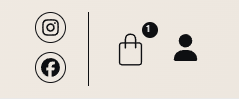
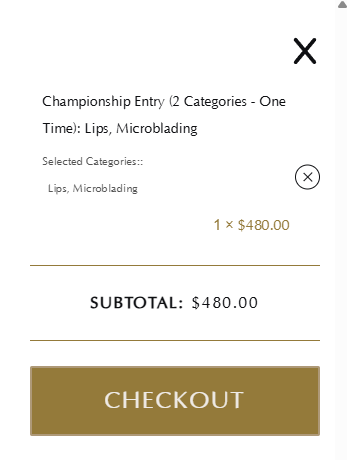
5. Once you are happy with your selection, proceed by clicking the Basket icon in the top right corner. Then click the Checkout button.
6. Once on the Checkout page, complete all the necessary details. Valid coupon codes can be applied on the checkout page too. Complete your registration by clicking Place Order.
If you need further guidance on how to proceed from here, please check out our Participation guide.
Participation Guide
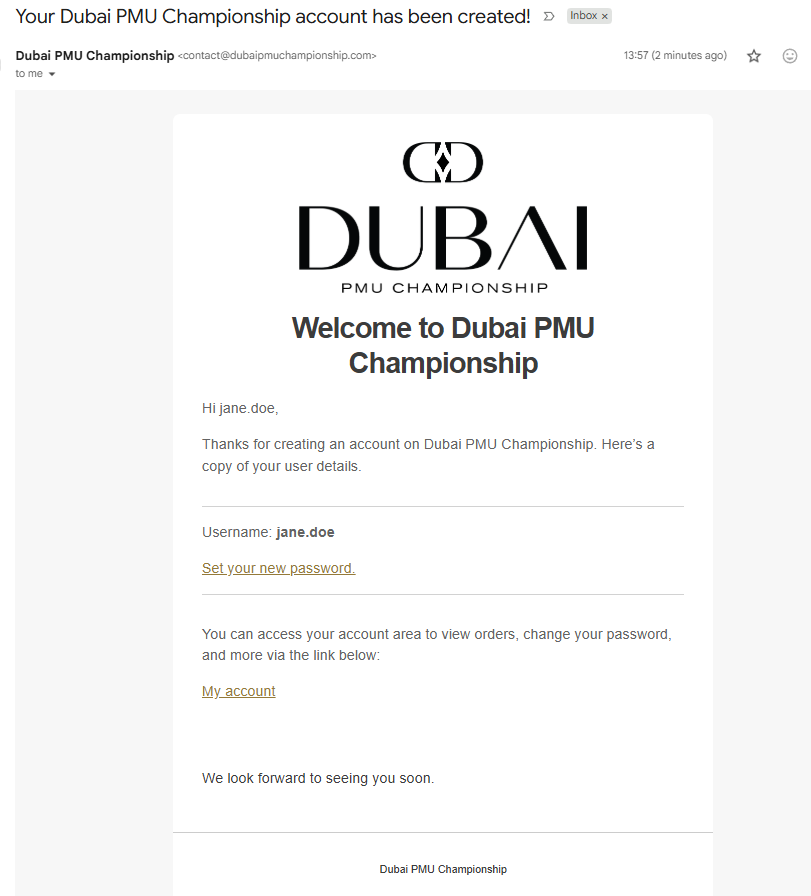
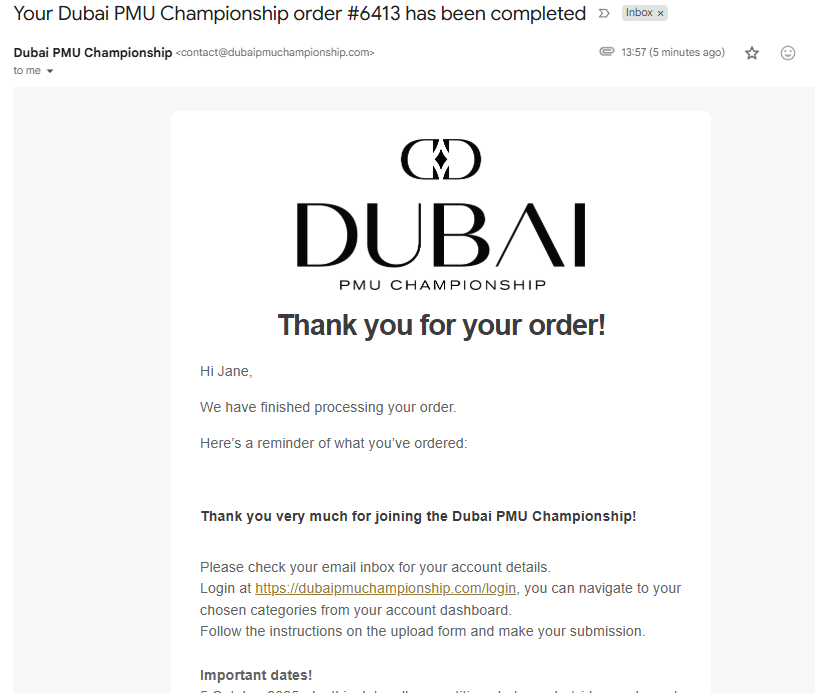
1. Following successful registration, an account will automatically be created for you, and you will receive two emails at the email address you registered with. The first email titled “Your Dubai PMU Championship account has been created” contains details about accessing your account, and the second email titled “Your Dubai PMU Championship order # has been completed” contains details about your order, invoice, and important information. If you cannot find these emails, please check your Spam folder.
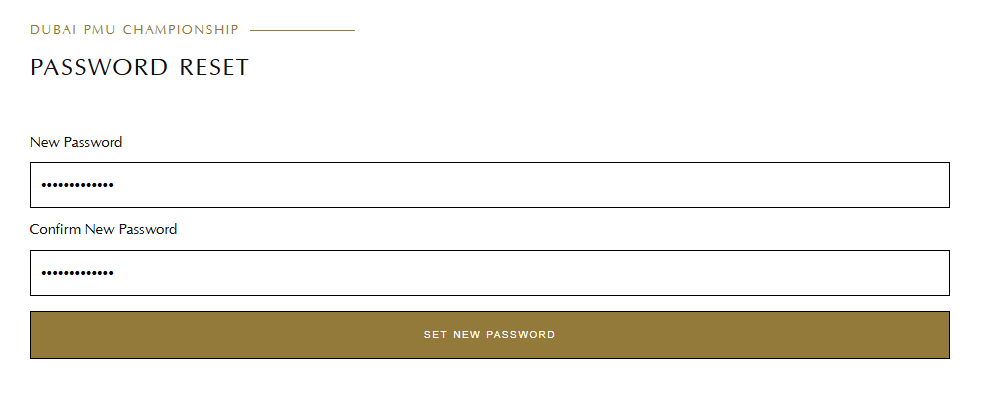
2. Before you can access your account, you need to follow the instructions in the Your Dubai PMU Championship account has been created” email and set your password. Set your password by following the link in the email, this link will only be valid for a limited time for security purposes. If you try and access the link and it has expired, please navigate to the Login page and click on Forgot your password?, then follow the instructions to set up your password.
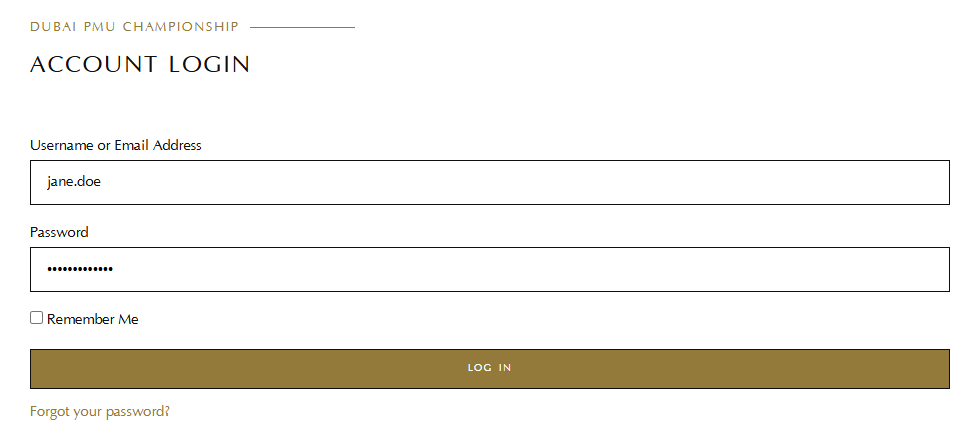
3. After setting up your password, proceed by clicking Login now or simply click the account icon in the top right corner. Fill out your account email address or username and your password, then click Log In.
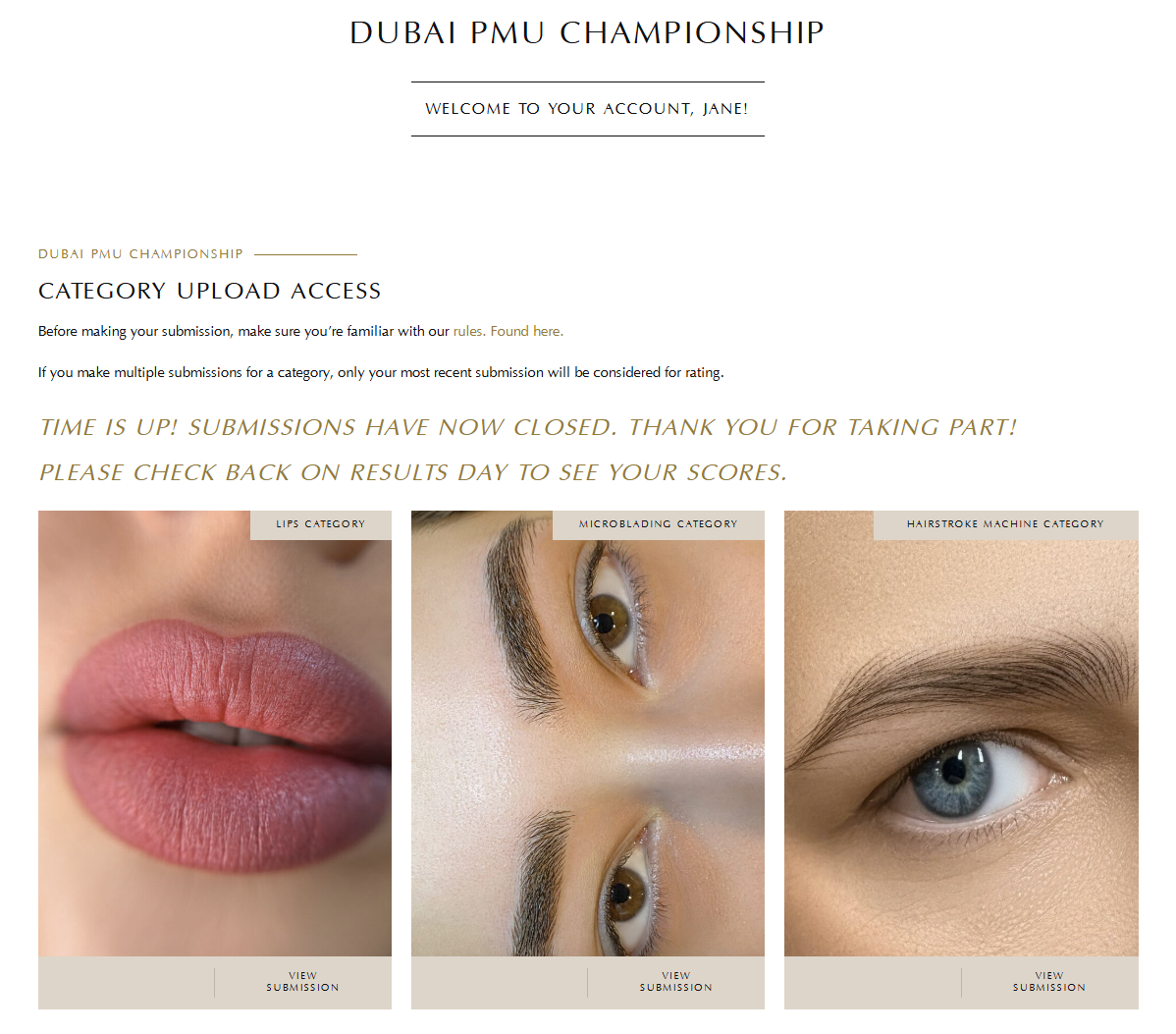
4. After successfully logging in, you will be presented with your account dashboard. From here you can access any of the categories you have registered for to make your submissions. Once you have submitted, you can also view it to ensure you are happy with it. Get started by clicking Category Access on any of your categories.
5. You will be presented with the submission form for your selected category. Follow the instructions on the page, click Add Image to select an image, and click Add File to select a video. Once you have attached all the necessary images and video, click Make Submission.
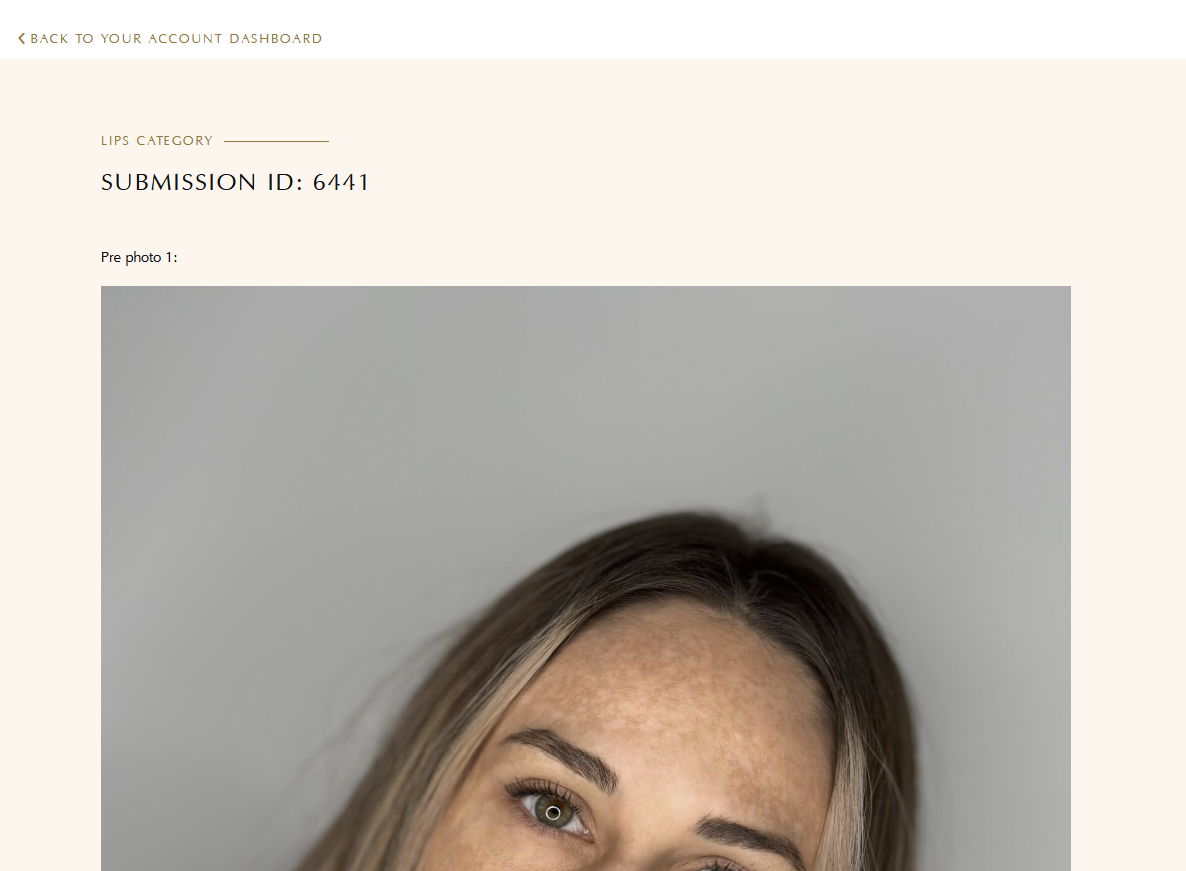
6. Once you have made your submission, you will be taken back to your account dashboard. From the account dashboard, you can click View Submission to review your submission for the respective category. If you are unhappy with anything in your submission you can click Category Access again and make another submission; your new submission will overwrite your old submission.
7. Ensure you have a valid submission for all the categories you have registered for before the deadline date. After the submission deadline you will no longer be able to access any category submission forms. However you will still be able to view your submissions. From here, relax and wait for results day.
8. After results day, check your account dashboard again. Your scores for each category will be available for you to view. View your scores by clicking View Your Results.
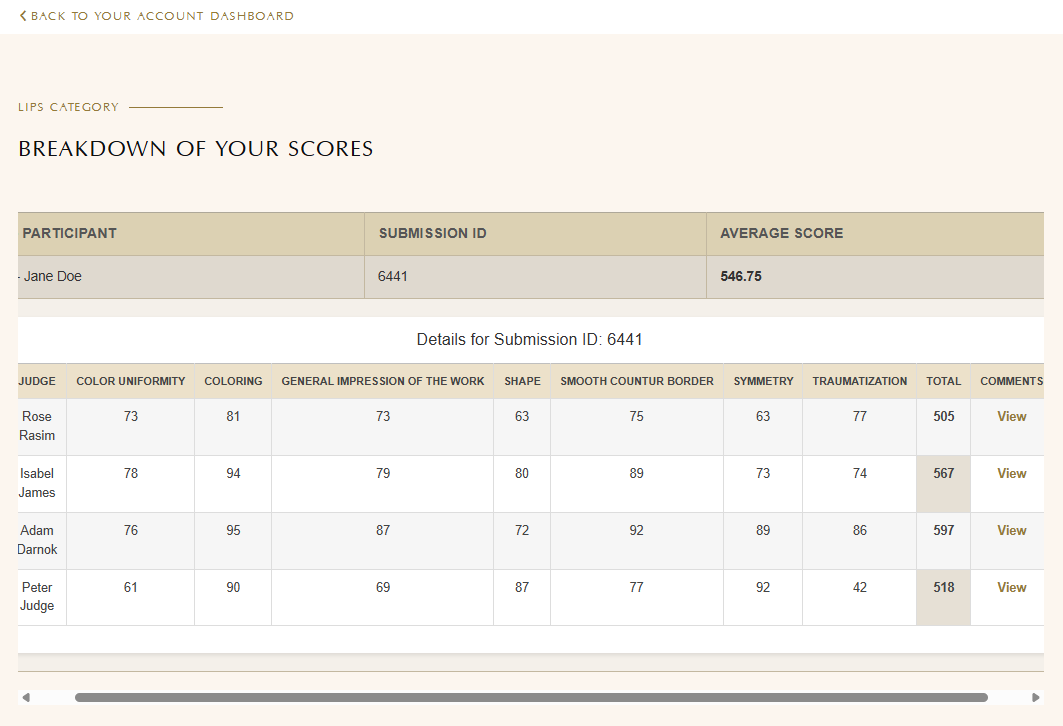
9. On the results page you will be able to see a breakdown of your scores from all the judges, along with their comments.
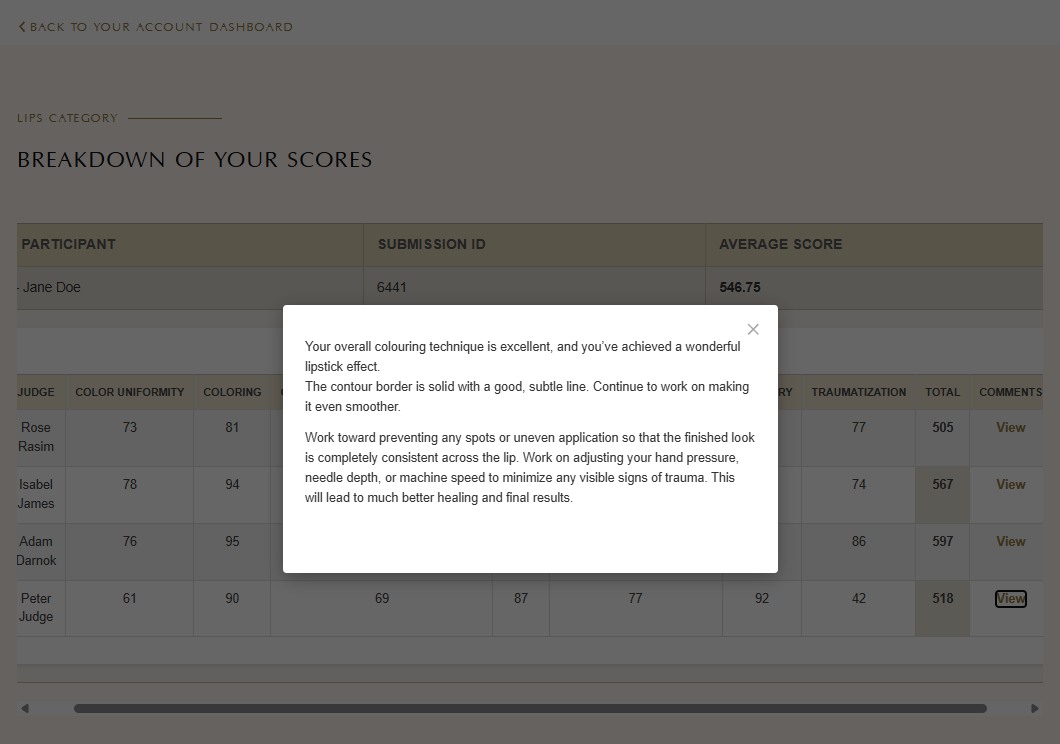
10. To veiw any of the judge comments, click View under the Comments column. You can then close the comments by clicking the x in the top right corner of the pop-up.
11. You can return to your account dashboard by clicking Back To Your Account Dashboard.
Judging Guide
1. If you are a judge, an account will be created for you by the organiser around the submission deadline date. When your account is created, you will receive an email at the email address you communicated to the organiser. The email will be titled “[Dubai PMU Championship] Login Details“, please follow the link inside the email to set your password. The link will only be valid for a limited time for security purposes. If you try and access the link and it has expired, please navigate to the Login page and click on Forgot your password?, then follow the instructions to set up your password. If you cannot find this email, please check your Spam folder.
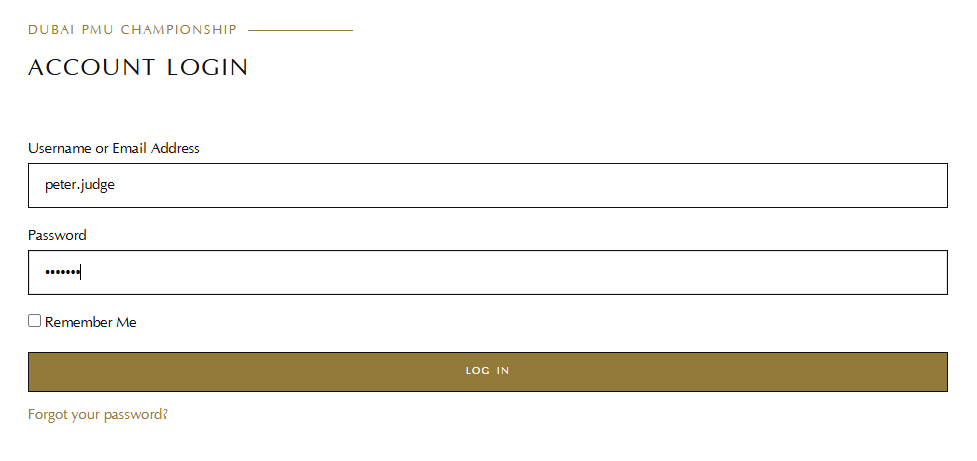
2. After setting up your password, proceed by clicking Login now or simply click the account icon in the top right corner. Fill out your account email address or username and your password, then click Log In.
3. After successfully logging in, you will be presented with your account dashboard. From here, after the submission deadline has passed, you can access judging for any of the categories you have been assigned to judge. Proceed by clicking View Submissions on any of your categories.
4. You will be presented with a page displaying all the anonymised submissions for the respective category. To start judging, click on any of the submissions on the page.
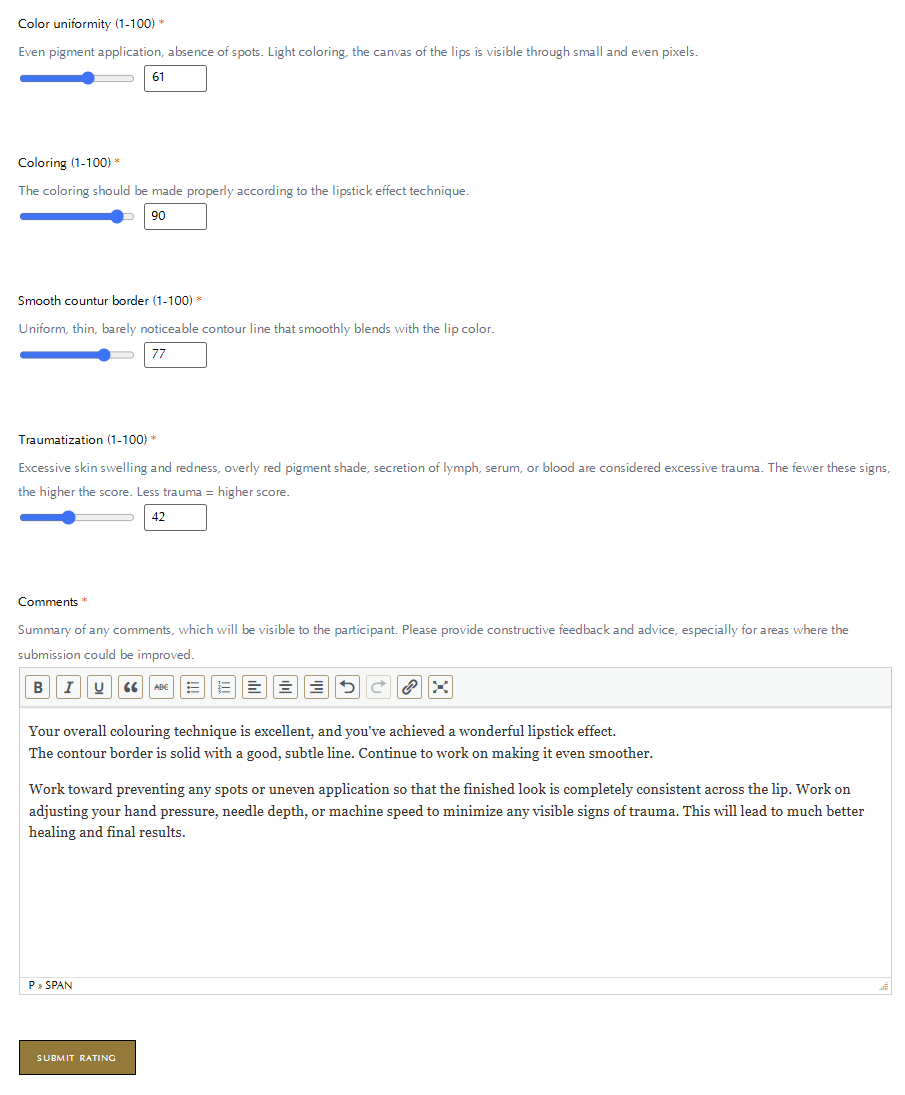
5. This will take you to the ratings page for the submission, where you can view the submission, and then complete the ratings form under the submission. Please complete all the fields in the form, and when you are ready click Submit Rating.
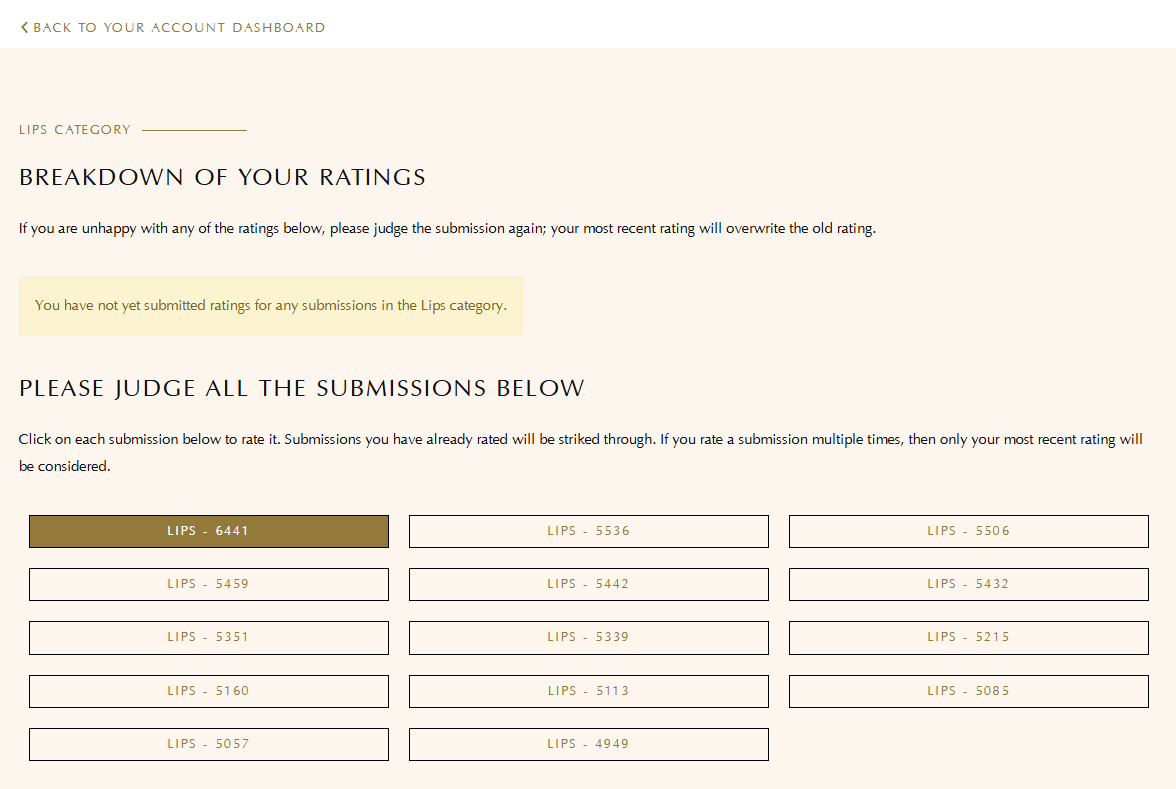
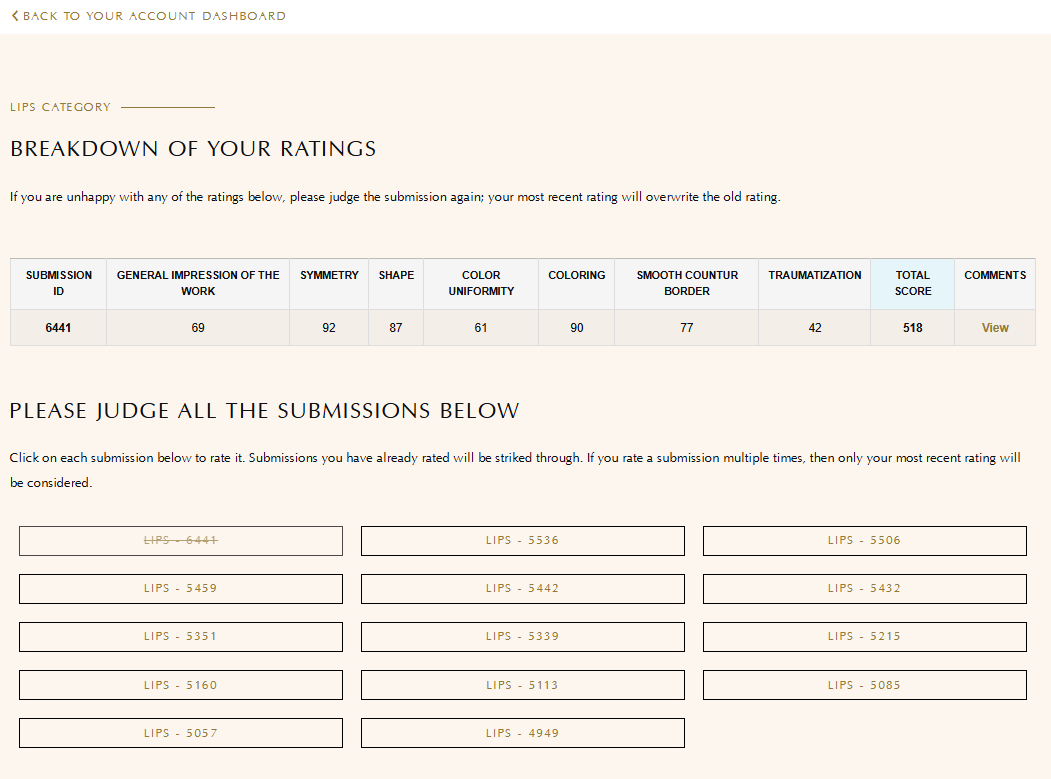
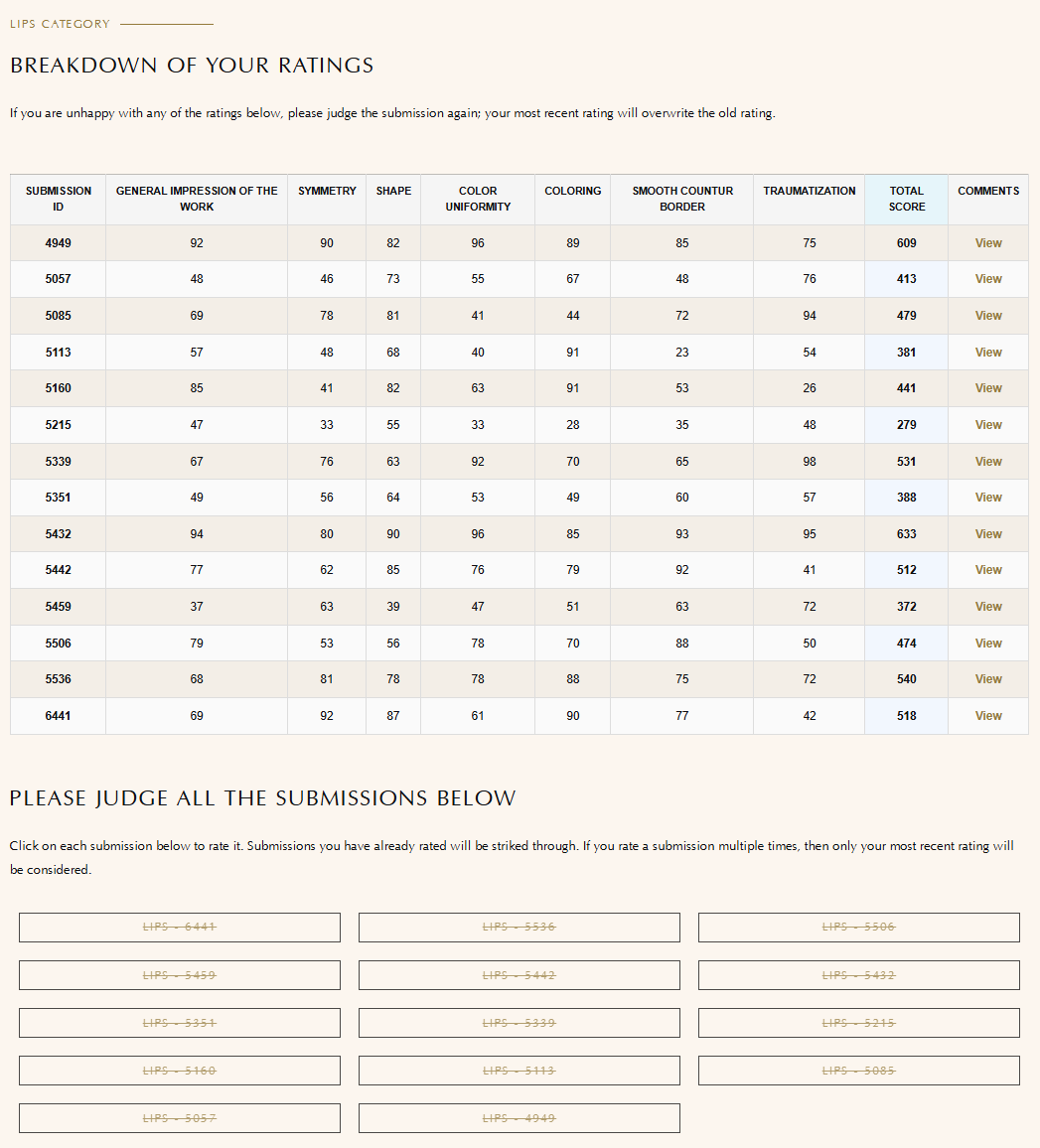
6. After submitting a rating, you will be taken back to the previous page. The submission you have rated will be striked through, to make it easy for you to keep track of which submissions you have already rated. Above the list of submissions, a table will show you your ratings. If you are unhappy with any of the scores or comments, please just click on the corresponding submission and rate it again. Your new rating will overwrite your old rating for the submission.
7. Continue this process until you have rated all the submissions in the category. Once you are done, you can click Back To Your Account Dashboard to return to your account dashboard.
8. From your account dashboard, you can navigate to any remaining categories you have been assigned to judge. Once you have completed all your assigned categories you are done.
You're all set
We're ready to see your work
Have you reviewed our competition guidelines? If so, you’re all set to participate in the online championship and showcase your talent. It’s easy, and you can submit your entries whenever it suits you!